
In this guide, we'll show you how to install MB STUDIO for the first time on a new PC or reinstall MB STUDIO if it's already installed.
If this is your first premiere, you must download and execute this file : https://www.mbradio.it/en/download-en/customers-area/download?path=CRYPTOBOX%252FCBUSetup.exe
Instead, reinstallation is required if you reinstall Windows, if manual or automatic updates fail, or if there are any malfunctions (reinstallation doesn't delete anything or cause data loss; it simply reinstalls the executable files, DLLs, and all the files necessary for MB STUDIO to function properly).
1 - DOWNLOAD THE MBStudioInstallxxx.exe FILE
you can download MB STUDIO from
https://www.mbradio.it/en/download-en/customers-area (If you aren't registered, you can register for free here: https://www.mbradio.it/en/new-account
Once logged in download the MBStudioInstallxxx.exe file to your computer (the version number is replaced by xxx).
https://www.mbradio.it/en/download-en/customers-area?folder=MB_STUDIO
2 - RUN THE MBStudioInstallxxx.exe FILE
Navigate to your downloads folder and double-click the MBStudioInstallxxx.exe file.

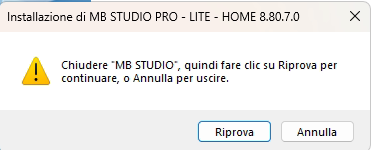
If the message below appears, it means you need to close MB STUDIO and MB SPOT if they are open.
If the message below appears, it means you need to enter a serial code. To obtain it, see here: HOW TO GET THE MB STUDIO INSTALLATION CODE

After entering the correct serial code, you can continue the installation until the end by clicking Next.
At the end, MB STUDIO should start automatically.
3 - HOW TO INSTALL MORE THAN ONE MB STUDIO IN THE SAME COMPUTER
If you have purchased multiple licenses and want to use multiple MB STUDIOs on the same computer, you must perform multiple MB STUDIO installations in multiple folders.
Let's see an example of installing 3 MB STUDIO on the same computer.
1) Run the MBStudioInstallxxx.exe file and when prompted for the installation folder, first install the third MBStudio in the c:\MBStudio3 folder (add 3 with the keyboard) and continue the installation.
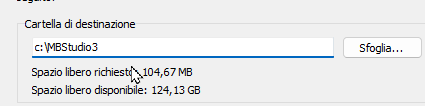
When finished, launch MB STUDIO, go to configuration options and set the session to 2 and close MB STUDIO.

2) Run the MBStudioInstallxxx.exe file and when prompted for the installation folder, install the second MBStudio in the c:\MBStudio2 folder (add the 2 using the keyboard) and continue the installation.

When finished, launch MB STUDIO, go to the options configuration and set the session to 1, then close MB STUDIO.
3) Run the MBStudioInstallxxx.exe file MBStudioInstallxxx.exe and when prompted for the installation folder, leave the default c:\MBStudio and continue with the installation.
4) At the end, we will have the following configuration:
- The first MB STUDIO is installed in the c:\MBStudio folder and has session number 0.
- The second MB STUDIO is installed in the c:\MBStudio2 folder and has session number 1.
- The third MB STUDIO is installed in the c:\MBStudio3 folder and has session number 2.
To launch all three MB STUDIOs, explore the three MB STUDIO folders and launch MBStudioStarter.exe in each one.
If all three don't launch, you haven't set the correct session number as explained above. Each MB STUDIO must have a different session number. If two MB STUDIOs have the same session number, only one will launch.
 MB STUDIO is a radio automation software that will allow you to create and manage your own radio station playing all your media files: jingles, commercials, news, songs, Files from internet, live streams, live inputs from your sound card, satellite feeds. Automatically download news and shows from Internet. Multiple overlapping files and/or live sources (mic, line, aux). Voice tracking. Integrated CD Ripper. Integrated jukebox to play songs requested via sms / email messages. Display current playlist on your web site.
 MB RECASTER features an audio recorder with scheduler, a webcast module to send streams to any Shoutcast, Icecast or Windows Media server, AutoDJ function to play randomly your own audio files from up to 4 folders, a stream receiver allowing to record or recast to your server (transcoder), an audio converter from/to any format.
 MB LIVE is a software that stream a live audio\video feed from any place to an MB STUDIO PRO automation in the main radio studio. MB LIVE make use of a TCPIP connection. This program is free for MB STUDIO PRO users